
Finding your way around
Every page shares the same bar across the top. Once you know it, you can get anywhere.

The navigation bar
From left to right:
| Element | What it does |
|---|---|
| Dataset | Shows which dataset you're looking at, and switches between them |
| Home | Headline numbers for the current month |
| Reports | Your prepared Reports — labelled Inventory on some accounts |
| Audience | Audience manager and Ranker |
| Campaigns | Campaign delivery |
| Tools | Research and Exporter |
| ? | Help menu: Help & docs (these pages), Dataset docs (your client documentation), terms and system information |
| Your initials | Account menu |
Menus group the tools by job rather than by name, so if you're hunting for something: querying lives under Tools, anything audience-shaped under Audience, and prepared reports under the reports menu. Menu names and what sits under them follow your setup, so they can differ from the labels used here — the jobs don't.
Where you land
After signing in you arrive at a default view — often Home, but your administrator can point your group at a report or at Research instead. Wherever you land, the navigation bar is the same.
Switching dataset
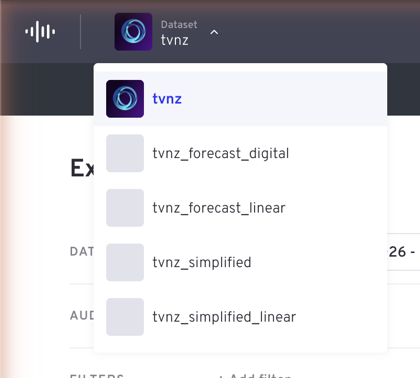
The Dataset control at the far left shows the dataset in view. If your account has more than one, use it to switch.
WARNING
The dataset decides everything else on screen — which dimensions exist, which metrics are available and which reports are listed. If a filter or report you expected has gone missing, check you're in the right dataset.
Your account
The circle at the top right holds your account menu: your user group, timezone, password, Exports and sign-out. See Your account.
Timezone
Your timezone is shown in the account menu and applies to how days are bucketed in results. If figures look shifted by a few hours against another system, compare timezones first.