
Line items
A line item is a specific part of a campaign. It defines when the ads run, who they target, how much budget is allocated and which creatives are used. Most of the detail in a TVNZ booking is set at the line item level.
The same line item form is used for all campaign types, but the fields you see depend on the campaign type. This page explains each field in the order it appears and says which campaign types use it. The table in Which fields each campaign type shows is the quick version of the same thing.
TIP
Where a section header is collapsible, closing it leaves a summary of what you chose — Any genre, Nationwide, All devices, All day — so you can review a line item without opening every panel.
Line item info
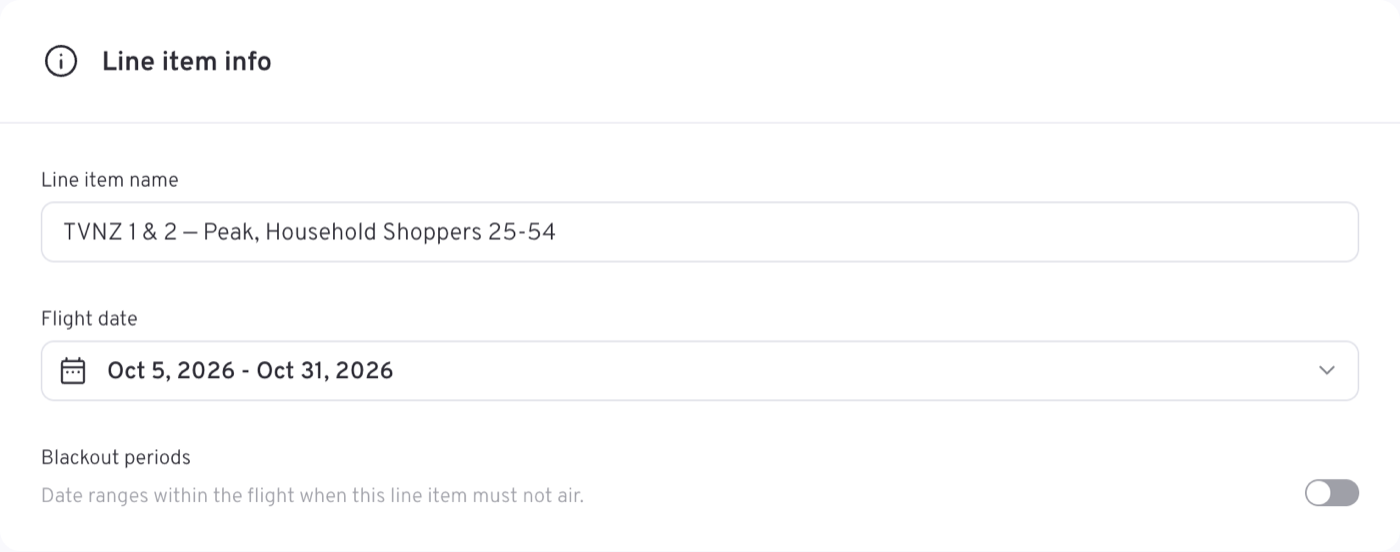
Three things, as the picture shows: the name, the line item's own flight, and the Blackout periods switch beneath it.
All campaign types.
Line item name is free text, up to 200 characters. Flight date is the line item's own start and end, and it must sit inside the campaign flight.
Blackout periods is off by default — Date ranges within the flight when this line item must not air. Turn it on to name the dates the line item has to go dark: a public holiday, a client's own event, a week the brand does not want to be seen. The ranges have to sit inside the line item flight, and they may not cover the whole of it. Set the flight first, since the dates you can black out follow from it.
Linear line items — Brand Awareness and Broadcast Activation — are additionally held to a single broadcast month: weeks starting Sunday, the month ending on the Saturday nearest its end. Digital Activation works in calendar months, and its line items may span more than one. To run a linear campaign across a month boundary, split it into one line item per month.
Product
Digital Activation only.
A set of cards, one per digital product, each carrying how it is priced. Network Video is selected to begin with.
| Card | What it is |
|---|---|
| Network Video | Pre-roll and mid-roll video across TVNZ+ and partner inventory. CPM from the rate card |
| Social Stream | Short-form video in the social-style feed on TVNZ+. Same base CPM as Network Video for the agency and duration |
| AOP · Ads on Pause | Display shown when the viewer pauses. Priced from the agency's AOP Targeted CPM |
| Daily Reach Blast | Own one day on TVNZ+ Network: your 15- or 30-second creative is the first ad every active TVNZ+ profile sees that day. One booked date per line item, at the daily price shown on the card |
Stream Type and Digital objective are not in this section — they open Targeting instead.
Booking a Daily Reach Blast
A Daily Reach Blast is a one-day buy, and the line item form changes to match:
- One booked date. The flight picker becomes a single Booked date; one click books the day, within the campaign flight. To run several days, add one line item per date.
- The price is a daily price, not a CPM. The card shows the agency's rate for a day — $ 2,400 / day, for example — and that is the line item's Budget (gross); the rate field reads Daily price. There is no delivery target, no targeting loading and no campaign discount on that line, and the rail chip reads the same per day figure. A campaign's blended CPM is worked out from its CPM line items only.
- Fixed by the product, so not asked. Stream Type is TVNZ+ Network only; the creative is 15 or 30 seconds — the first ad every active profile sees that day, once per profile; targeting, schedule, dayparts, frequency caps, pacing and blackout periods are not offered.
Switch the product back to a CPM product and the line returns to the rate card and to a flight date range, keeping its budget.
Targeting
The longest section, and the one that differs most between types. On a linear line item it opens with Demographics and runs through collapsible Genre, Channels, Programme and Programme Rating rows — each showing what you chose, or Any genre, Any rating — before Peak % and Break position at the foot, as here.
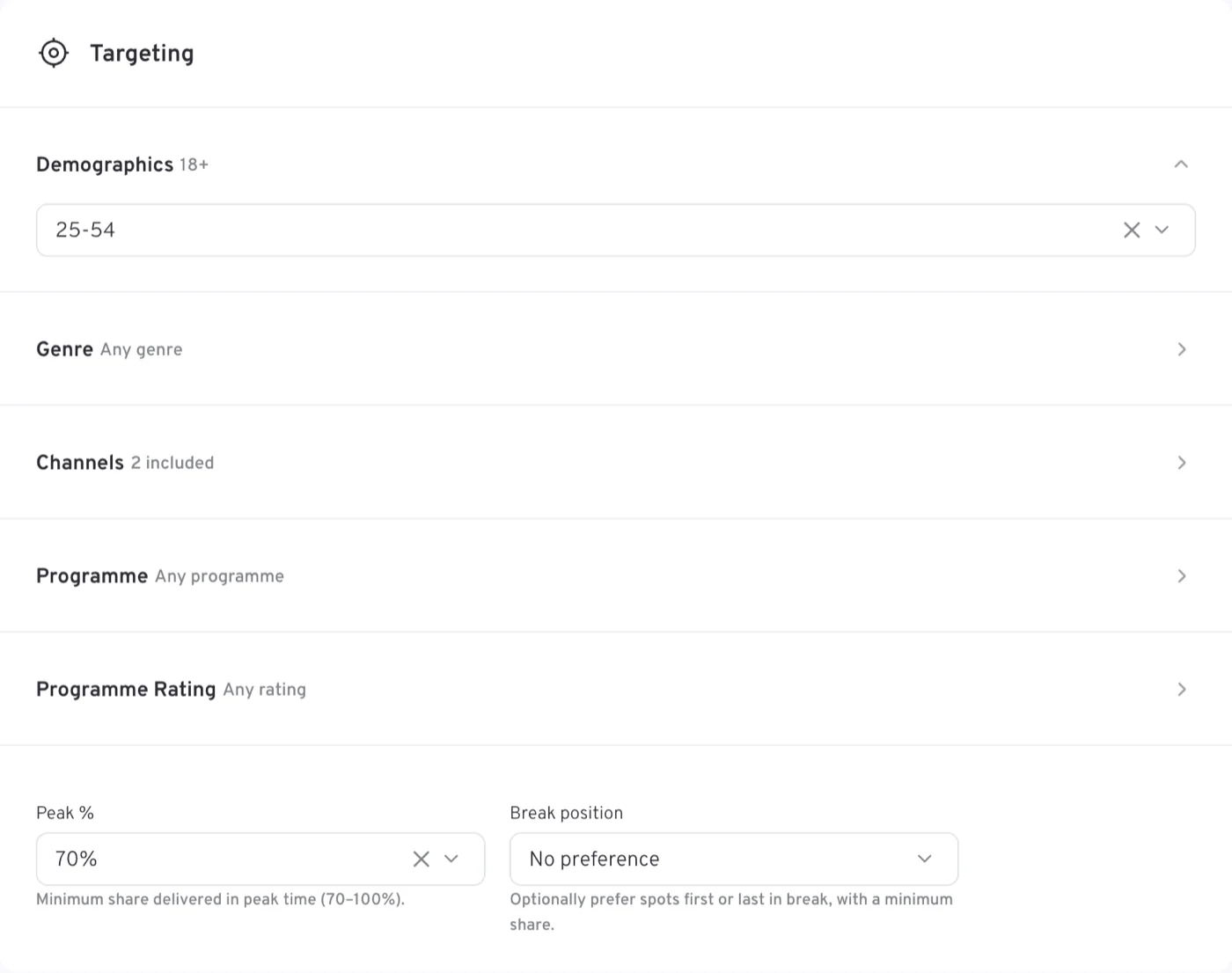
Linear targeting and digital targeting barely overlap: Demographics and Channels are linear, Stream Type, Age group, Gender, geography, devices and audience segments are not.
Stream Type and Digital objective
Digital Activation only.
The two fields at the top of Targeting on a digital line item.
Stream Type is where the video runs: TVNZ+ Network (All video on TVNZ+), which is the default, VOD (Video on Demand) or Live (Simulcast + FAST+ Live Events). VOD and Live are offered only once a digital product is chosen, and not at all on Daily Reach Blast — that product runs across the network.
Digital objective is the delivery preset: Standard (the default, front-weighted delivery), Maintain Brand Presence (even delivery across the flight) and Reach Velocity (fast awareness, front weighted).
Age group and Gender
Sponsorship, Digital Activation — not on Daily Reach Blast.
Two rows of chips — the age bands run 13-17 to 75+, and the genders are Female, Gender Diverse and Male.

They come from your account's age and gender dimensions, so pick as many chips as apply. Audience-traded linear buys use Demographics instead.
Demographics
Brand Awareness, Broadcast Activation (Audience Trading).
A single demographic — the trading demo the buy is priced and measured against. Defaults to 18+. The choices are the demos your account holds, narrowed to the ones the chosen campaign type actually prices, so the list is not the same on every type.
This choice reaches further than it looks: the channel shares, the Peak % levels and the rate all follow from it.
Audience Segments
Digital Activation only.
Audience segments group viewers beyond the standard demographics of age, gender and income — by interests, behaviour, or a segment defined for the advertiser.
Digital audience type decides which of the three audience fields applies:
| Type | Then choose |
|---|---|
| Audience segment | A Segment — one of the processed audiences on your account |
| Custom audience | A Custom audience — one built bespoke for the advertiser or product |
| DataIQ | One or more DataIQ third-party targeting products |
It defaults to Audience segment. If you pick Custom audience or DataIQ, the matching field must be filled in before the campaign can be booked.
Genre
Brand Awareness, Digital Activation.
An include-or-exclude list of content genres: add the genres you want, or invert them to keep away from them. Left alone it reads Any genre.
Channels
Brand Awareness; Broadcast Activation (Audience Trading).
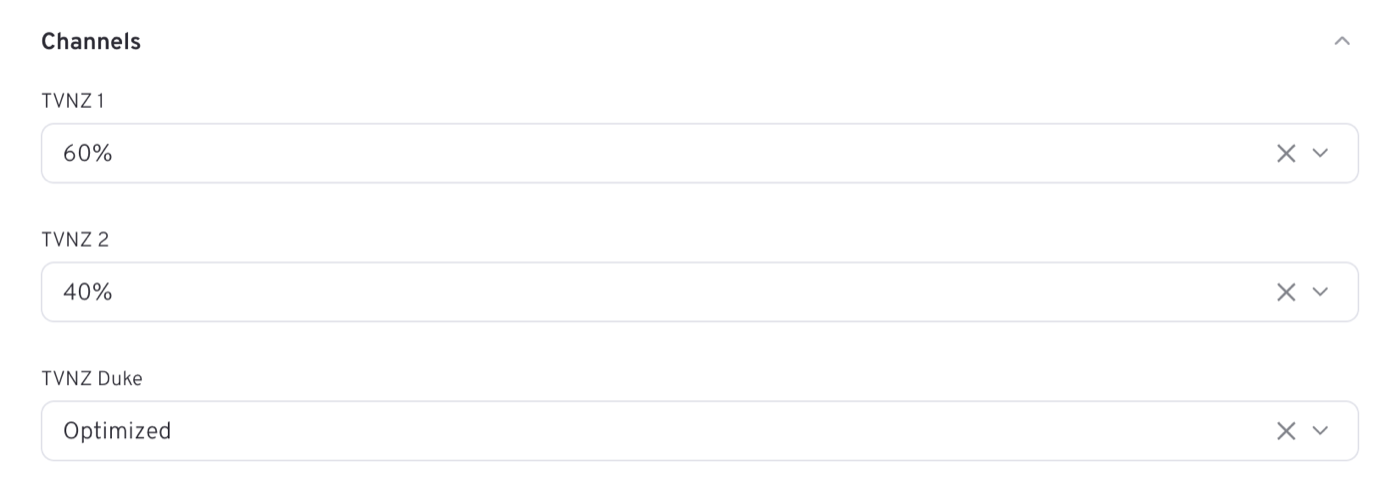
The two linear types treat channels differently. On an audience-traded buy the section opens into one field per channel, each holding a percentage or Optimized, as here.
Brand Awareness gets Channels, an include-or-exclude list of channel values. Collapsed, it reports how many you kept — 2 included.
Broadcast Activation on Audience Trading instead gets a share per channel — TVNZ 1, TVNZ 2 and TVNZ Duke — each set to Optimized or to a whole percentage from 0 to 100 in steps of 5. All three default to Optimized, which lets delivery fall where it performs and carries no station-grid loading. The percentages on offer come from the station grid for the demographic you chose, so they change when the demo changes.
A pinned 0% is not the same as leaving it alone
Leaving a channel share unset prices the same as Optimized. Pinning it to 0% is a deliberate instruction to deliver nothing on that channel, at the grid's discount.
Programme exclusions
Linear exclusions: Brand Awareness, Broadcast Activation (Audience Trading). Digital exclusions: Brand Awareness, Digital Activation.
The Programme section is exclusions only — you name programmes to stay out of, not programmes to buy. Programme linear exclusion covers linear programmes; the digital exclusion field covers on-demand programmes. Brand Awareness has both. Collapsed with nothing set, the section reads Any programme.
Programme Rating
Brand Awareness, Broadcast Activation (Audience Trading), Digital Activation.
Classification ratings — again include or exclude. Note that Brand Awareness stores what you pick as exclusions, while the other types store them plainly, so read the chips rather than assuming. Left alone it reads Any rating.
Frequency Cap
Digital Activation only.
A frequency cap limits the number of times the same person is shown the advertisement.
A list of caps, each a number of ads within a window. The window is entered in min, hour or day. Add more than one for a layered cap.
Geography
Digital Activation only.
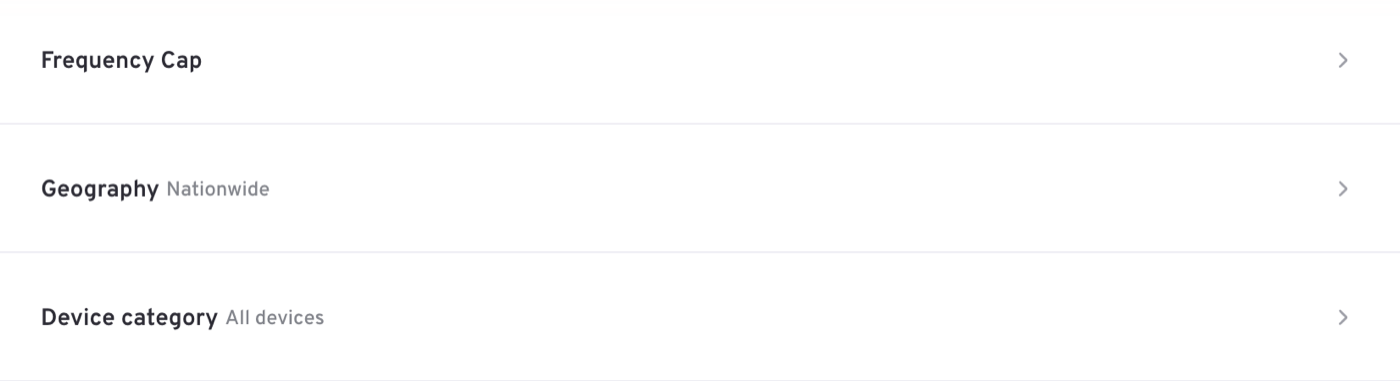
Two pickers, Regions and Cities, each an include-or-exclude list. With nothing set the section reads Nationwide.
Device category
Digital Activation only.
Include or exclude device categories — the summary reads All devices until you narrow it. Closed, these three rows sit together near the foot of digital targeting and read back what you left open.
The optimisation packages
Digital Activation only.
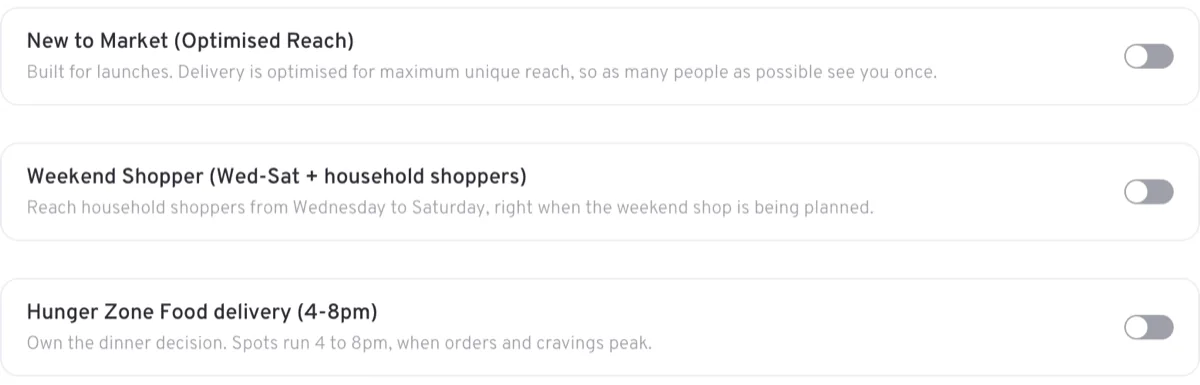
Three toggles that close the targeting section, each off to begin with:
| Package | What it does |
|---|---|
| New to Market (Optimised Reach) | Built for launches. Delivery is optimised for maximum unique reach, so as many people as possible see you once |
| Weekend Shopper (Wed-Sat + household shoppers) | Reaches household shoppers from Wednesday to Saturday, right when the weekend shop is being planned |
| Hunger Zone Food delivery (4-8pm) | Owns the dinner decision — spots run 4 to 8pm, when orders and cravings peak |
New to Market must be set one way or the other before the campaign can be booked; the other two are optional.
Peak % and break position
Brand Awareness, or Broadcast Activation (Audience Trading).
The pair sit side by side at the bottom of linear targeting, each with a line of help under it.

Peak % is the minimum share of delivery you require in peak time — Minimum share delivered in peak time. The levels on offer come from the pricing sheet's peak table for the demographic you chose, so they move when the demo does. On Brand Awareness the help line pins the range at 70–100%. On audience-traded Broadcast Activation the list also carries the demo's own natural level, labelled in the field — 64% (natural delivery) — which is the share peak would take if nothing were guaranteed; anything above it is a commitment you are paying for.
Break position asks where in the break your spot lands — Optionally prefer spots first or last in break, with a minimum share. It opens on No preference; choosing First in break or Last in break reveals FIB / LIB %, the minimum share to be delivered in that position — No minimum, or 5% to 100% in steps of 5. Both carry a premium — see the loadings for how each one moves the rate.
Ad Mirroring
Broadcast Activation (Audience Trading) only.
Ad mirroring synchronises the ad across platforms during a live broadcast. A single toggle: your spot airs everywhere the channel does. The same break is mirrored to companion feeds, and the mirrored airings count toward delivery.
Budget
All campaign types.
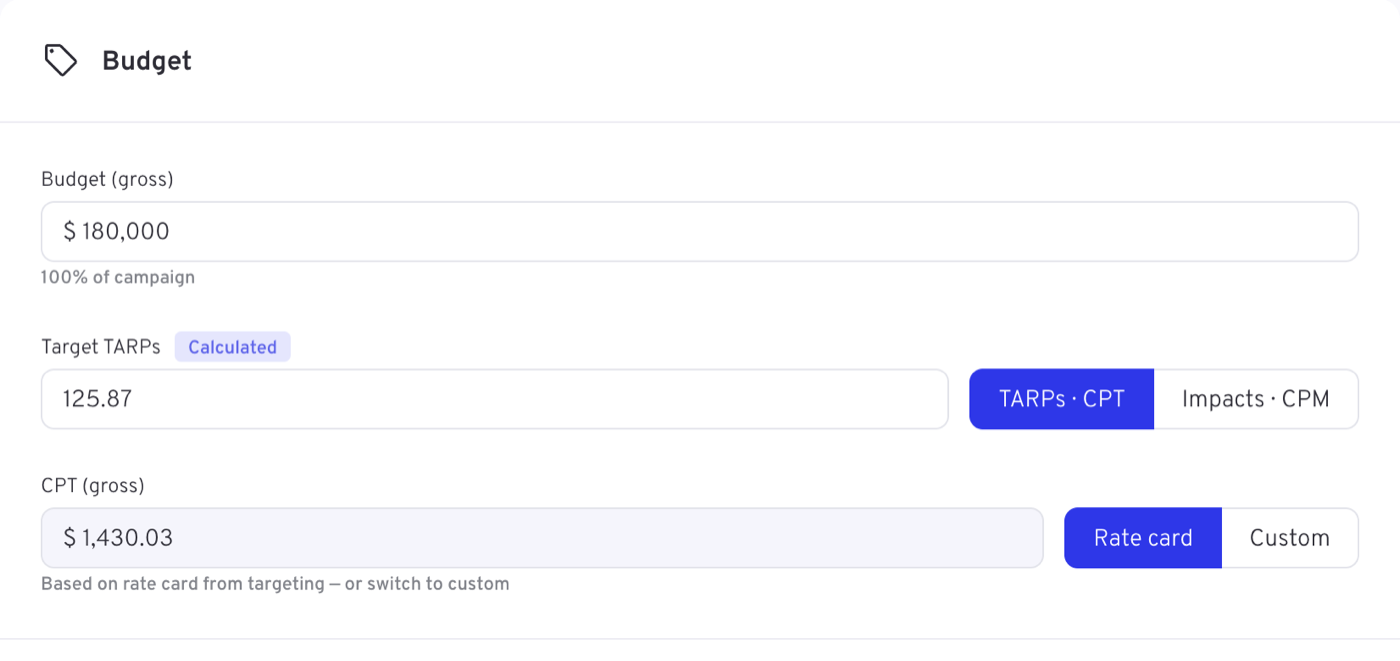
Three fields stacked, with the switches that say how the line item trades beside them.
| Field | What to enter |
|---|---|
| Budget (gross) | This line item's gross budget, to the cent. A line under it reports its share of the campaign — 100% of campaign |
| Target Impacts / Target TARPs | The delivery goal, marked Calculated |
| CPM (gross) / CPT (gross) | The rate — Rate card or Custom |
The line item budgets must sum exactly to the campaign's Budget cap. A goal appears for Brand Awareness, audience-traded Broadcast Activation and Digital Activation — Sponsorship and Spot buys carry no delivery goal, so their Budget section is the budget alone.
Most types set the goal as Target Impacts bought at a CPM (gross) — the cost of a thousand impressions, total cost ÷ impressions × 1,000. An audience-traded Broadcast Activation trades in rating points instead: Target TARPs at a CPT (gross) — the cost of one rating point, one per cent of the target audience — with a TARPs · CPT / Impacts · CPM switch beside the goal if you would rather work in impacts. The rate itself carries a Rate card / Custom switch — Based on rate card from targeting — or switch to custom — so it arrives priced from your targeting and the campaign's deal, and you override it only deliberately. How that price is built — base rate, loadings, deal and discount — is explained on Deals, rates and loadings.
Budget, goal and rate have to agree: the goal is Calculated, so the platform keeps it in step with the budget at the current rate, allowing only for rounding.
On a Spot buy the section carries a banner — Create a shell campaign and set spots later via TVMap — as a reminder that the money is being committed here while the spots are chosen elsewhere.
Split
Brand Awareness, Broadcast Activation (Audience Trading).
Flight pacing sits at the foot of the Budget section as a row of buttons, Evenly first and selected by default. Which others appear follows the line item's flight: a flight shorter than a week is paced Evenly only, a longer one adds Weekly, and one that runs a month or more adds Monthly as well. Evenly needs nothing further. Choosing Weekly or Monthly opens a split table under it, as here.
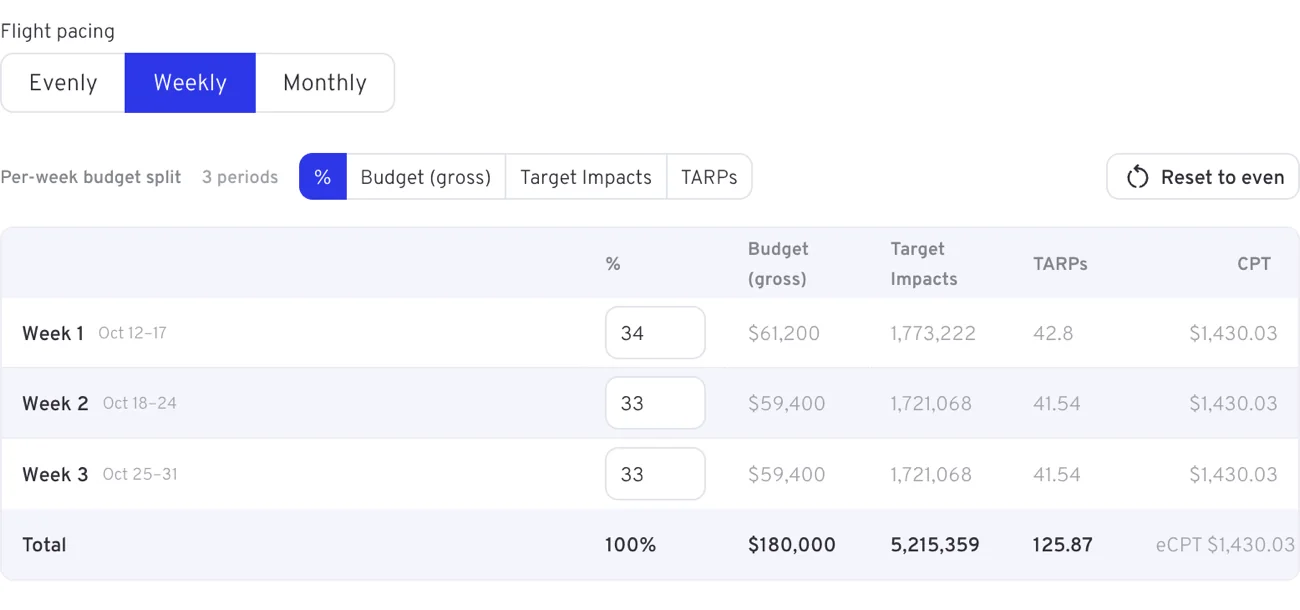
The table is headed Per-week budget split (or per month) with the number of periods, a switch for the unit you would rather type in — %, Budget (gross), Target Impacts or TARPs — and a Reset to even button that shares the flight out equally again. Each row is one period with its dates, and shows the percentage alongside the budget, impacts, TARPs and rate it works out to; a Total row at the foot adds them up. The percentages must sum to 100 before the campaign can be booked, and the form tracks that as you type.
Schedule
Week start and air times: Brand Awareness, Broadcast Activation (Audience Trading).
Three fields, and on a linear line item that is the whole section.
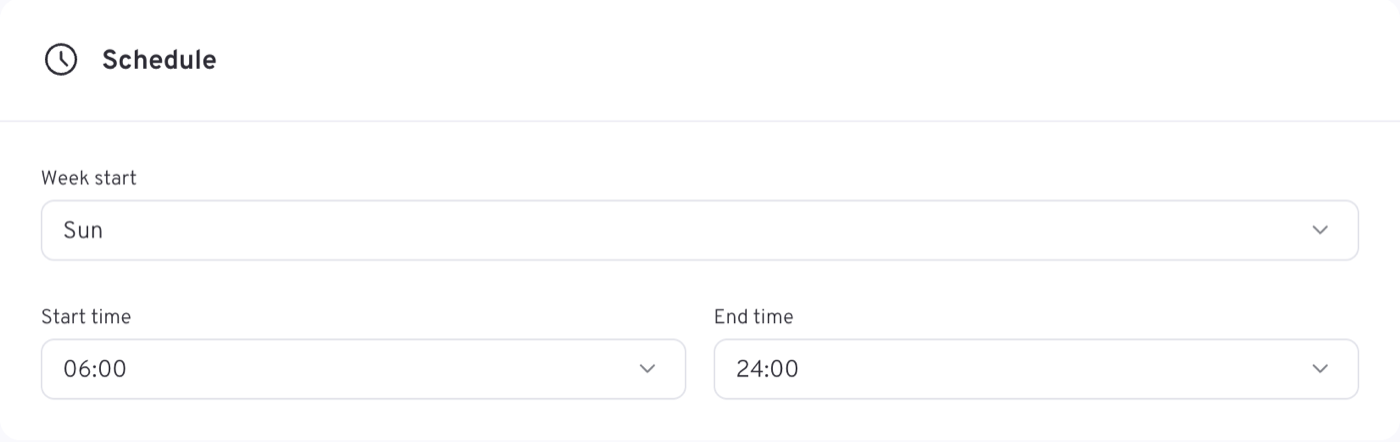
Week start is the day the campaign week begins — Mon through Sun, opening on Sun. Start time and End time bracket the time of day an ad may air, in 15-minute steps: 06:00 to 24:00 in the picture, and as wide as 00:00 to 24:00 if you want the whole day. The advertisement's length is not asked for here — it is Ad duration, under Creatives.
Dayparts
Digital Activation only.
A list of day-and-time windows, each running from a day and time to a day and time, so a window may cross midnight or run over several days. With nothing set the section reads All day — and on a digital line item Dayparts is the only row the Schedule section holds.

Measurement
Digital Activation only.
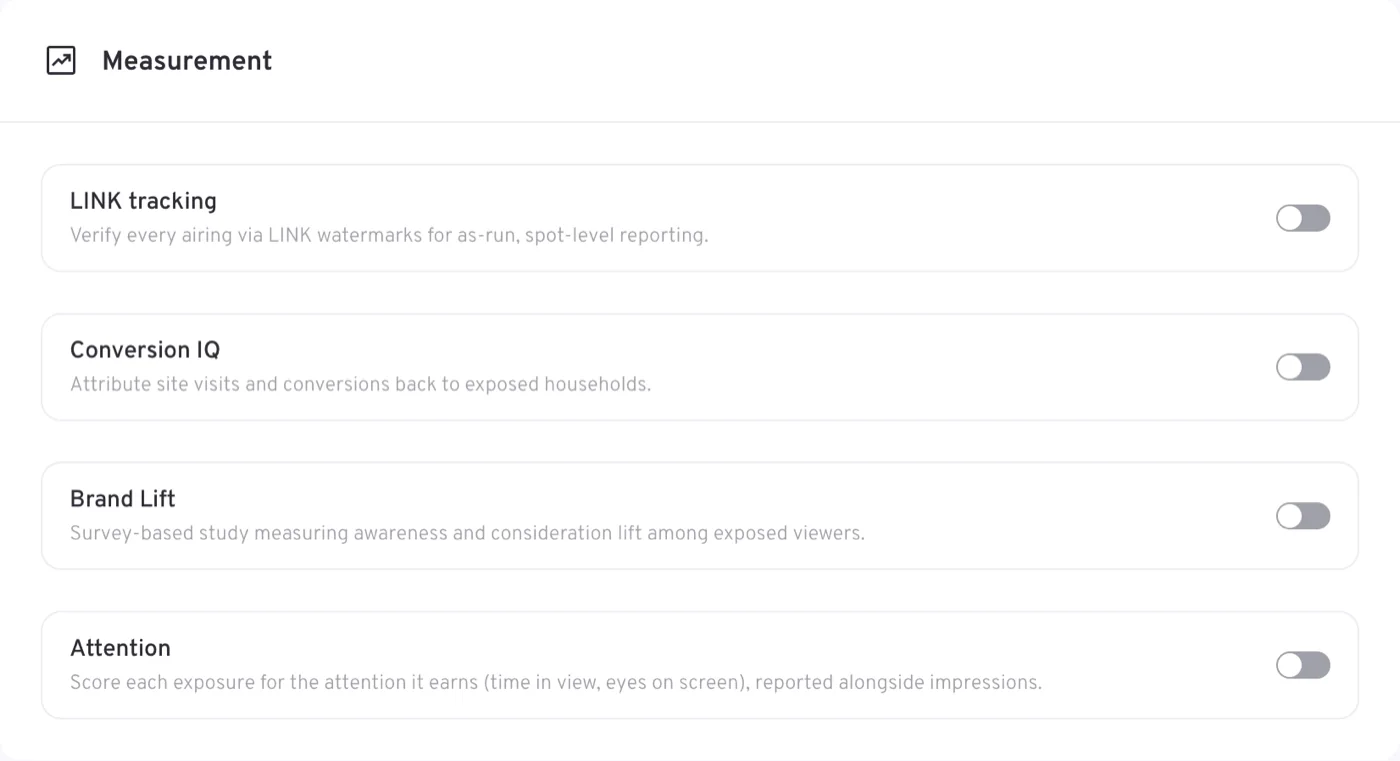
Four add-ons, each a switch and each available on request:
| Add-on | What it does |
|---|---|
| LINK tracking | Verifies every airing via LINK watermarks, for as-run, spot-level reporting |
| Conversion IQ | Attributes site visits and conversions back to exposed households |
| Brand Lift | A survey-based study measuring awareness and consideration lift among exposed viewers |
| Attention | Scores each exposure for the attention it earns — time in view, eyes on screen — reported alongside impressions |
Brand Lift is priced like the other measurement products: +$3 CPM on the line item that carries it, inside the campaign budget rather than on top of it. The budget stays what you entered and the impressions follow the loaded rate; the rail's + cpm breakdown lists Brand Lift study + $3.00 as its own row. It is offered on Network Video and Social Stream line items; on a Daily Reach Blast or Ads on Pause line the option says it is not available. The study also needs a campaign of size — 2.1M or more impressions booked across the campaign's CPM line items, delivering within 6 months — and until the campaign reaches that the option is off, with the shortfall stated; a booking under the gate is blocked with the same message. On a line item priced at a custom CPM the +$3 is not added: the custom figure is the final number, and the option says so.
Brand association / Asset types
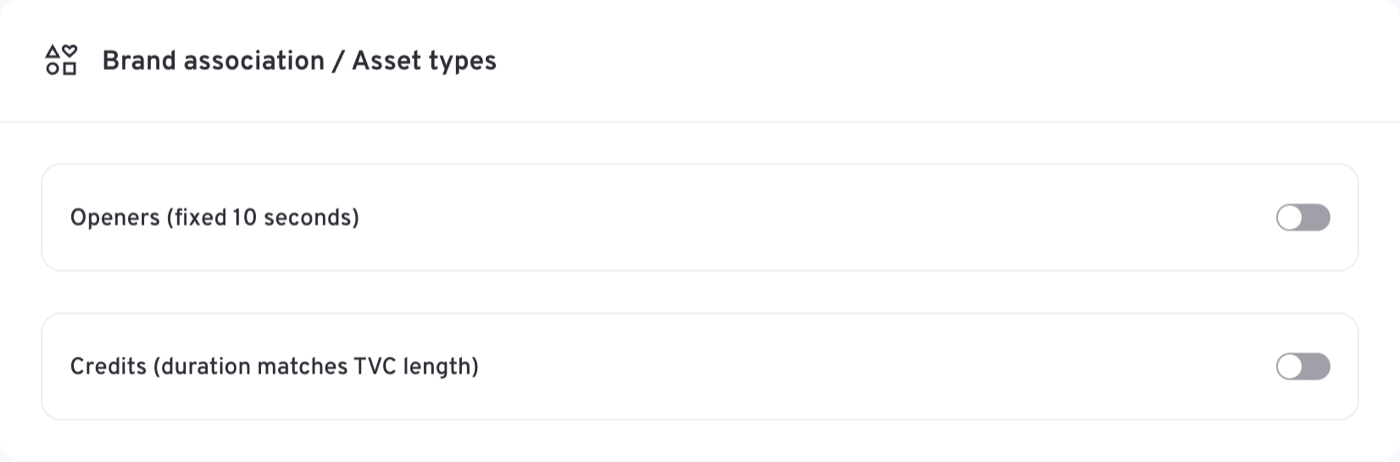
Two switches, both off until you turn them on.
Sponsorship only.
Openers (fixed 10 seconds) and Credits (duration matches TVC length) — the two sponsorship spot types. Include either, both or neither.
Sponsorship package
Sponsorship only.
A single picker reading Choose sponsorship package until you name the package being sponsored. Opening the booking from the Opportunities page preselects it.
Creatives
All campaign types.
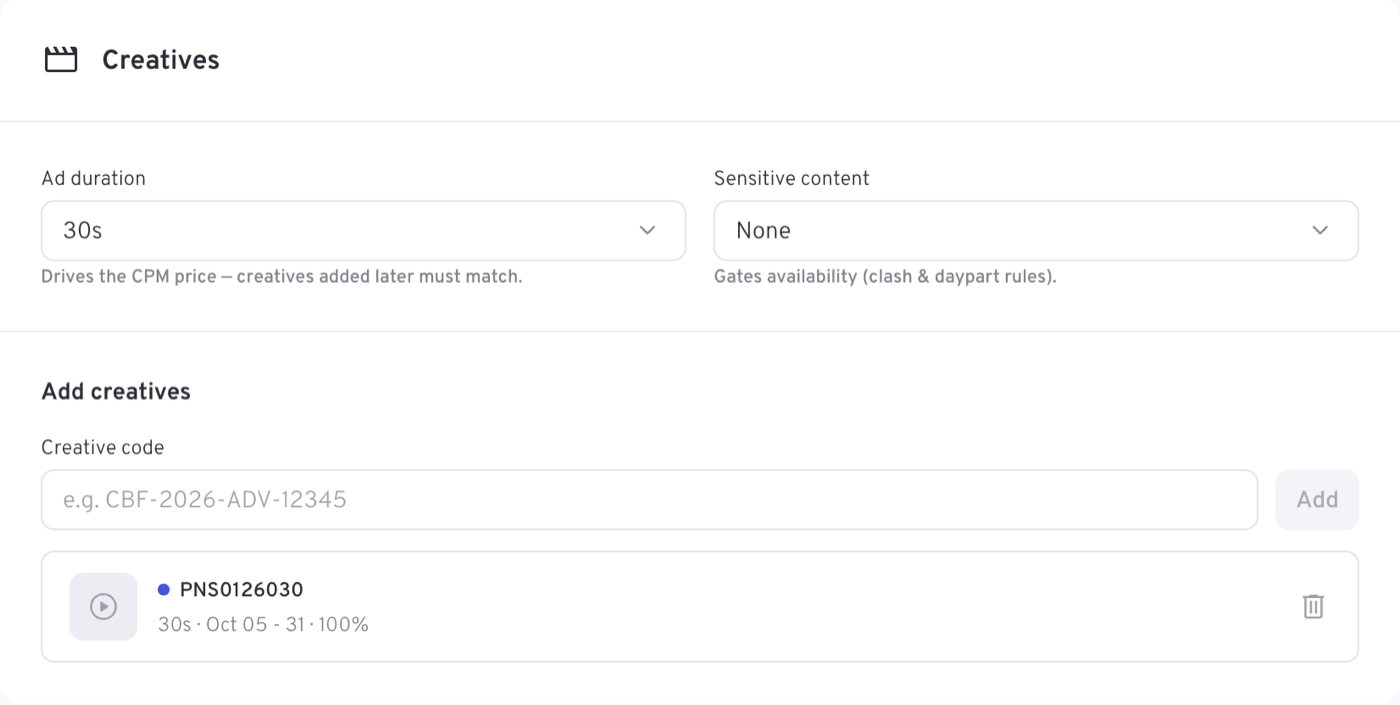
The last section, and it holds more than the creatives themselves: two fields that shape the buy, then the list you add codes to.
Ad duration
The length of the advertisement, chosen from a list — 30s to begin with — and the line under it says why it sits here: Drives the CPM price — creatives added later must match. Set it before you worry about the rate, and keep it honest, because a creative of another length cannot be run against it.
Sensitive content
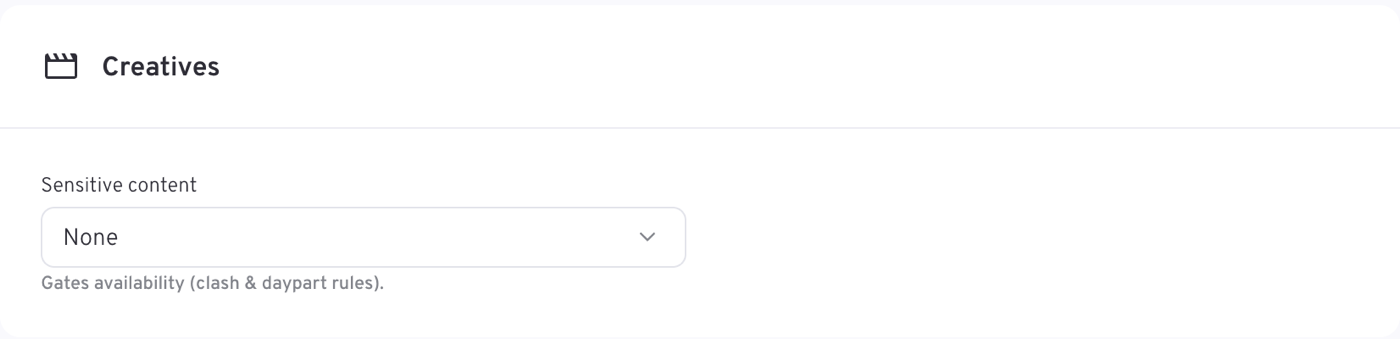
Flags the line item's advertising as falling into a restricted category, so it can be kept away from content it should not sit against: Gates availability (clash & daypart rules). It opens on None; the other values are Alcohol, Gambling, Adult (adult or R-rated) and Sensitive — see Option lists.
Add creatives
Creative code identifies the advertisement to run: type the code and press Add. The platform expects a Landmark House ID for linear and a VAST tag for digital. Set the campaign flight dates before you come here — creatives cannot be added until the flight is known. Each one added shows as a row with its code and, beneath, its length, the dates it runs and its share of delivery — 30s · Oct 05 - 31 · 100% — with a delete icon at the end of the row.
Creatives are not a condition of booking: with none added the panel says so — None added, none needed yet — and invites you to Add creatives when they're ready. On a Spot buy the section is shorter still, holding Sensitive content and nothing else, because the spots and their creatives are set in TVMap.
Fields the form does not show
The platform defines a couple of line item fields that the current TVNZ layout does not place, so they are not part of the form today:
- Creative rotation — how a line item's delivery divides between its creatives over the flight. Left unset, they rotate evenly for its whole length.
- Price override — an internal price override on the line item. It is worth knowing it exists: while one is held, the platform refuses a change of campaign type or buying method.
The full list is in Line item fields not in the current layout.