
Campaign level
The campaign level is the commercial frame around the booking: who it is for, when it runs, what it costs, and which kind of campaign it is. It is short — three sections — but the Campaign type you pick here decides what every line item will offer, so it is worth settling first.
The form will save a draft with just a Campaign name and a Flight date, but a campaign is of little use until it also has its agency and advertiser, its deal and its budget. Everything beyond the name and the flight can be filled in while the campaign is still in Draft, and becomes mandatory before you book.
General info
Filled in, the section reads like the picture below: the name, the insertion order ID and PO number, the flight, the agency/advertiser/product trio with the category filled in beside it, and a Notes box across the bottom.
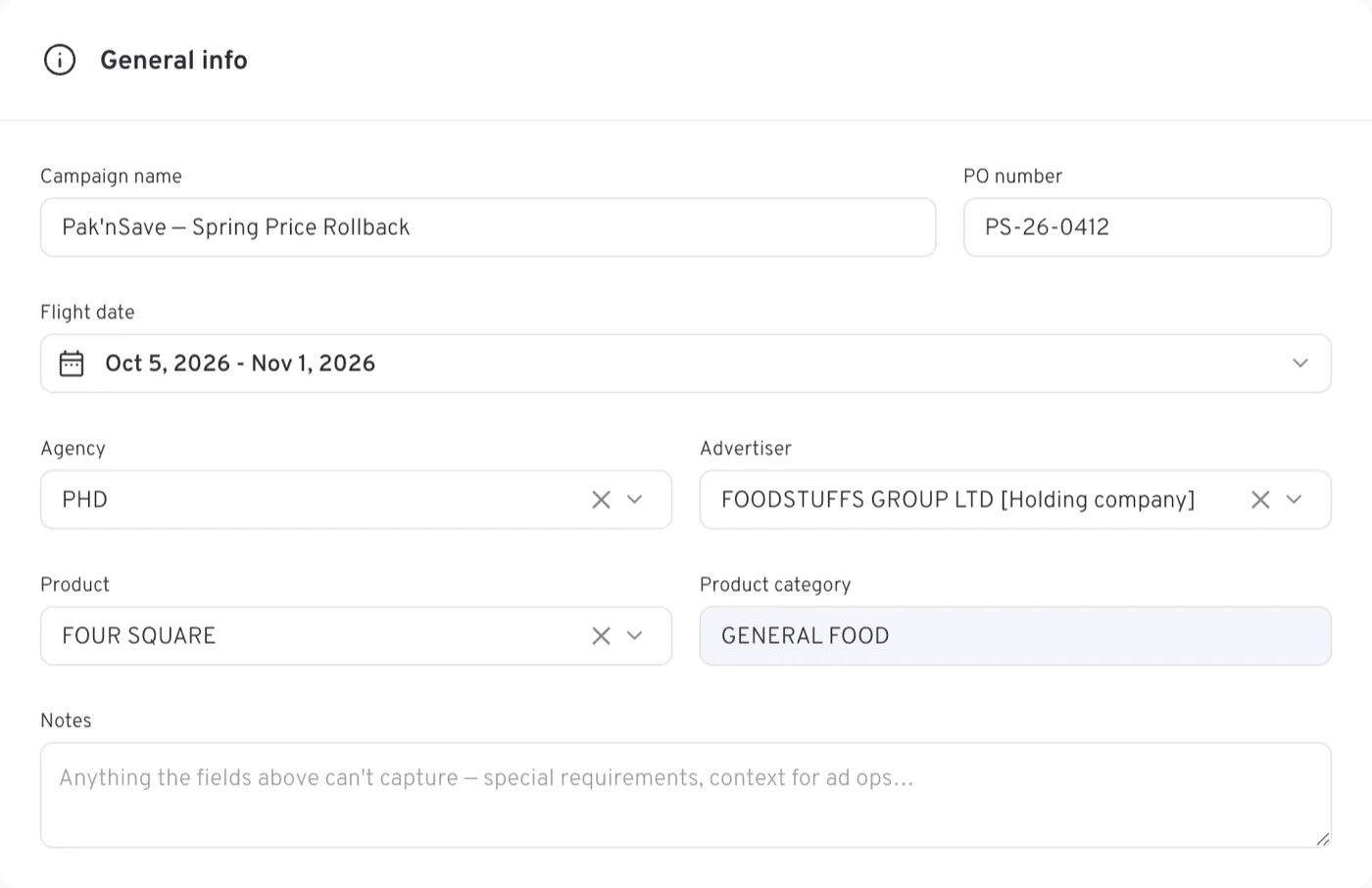
| Field | What to enter |
|---|---|
| Campaign name | The name the campaign is known by, up to 200 characters |
| Insertion order ID | The agency's insertion order this campaign books under — reports group by it. Optional, free text |
| PO number | The buyer's purchase order, quoted on the invoice. Optional, free text |
| Flight date | The campaign's start and end dates, both inclusive |
| Agency | The booking agency, or the media group it belongs to |
| Advertiser | The advertiser being represented, or its holding company |
| Product | The product being advertised |
| Product category | Filled in for you, read-only |
| Notes | Anything the fields above can't capture — special requirements, context for ad ops… Free text, up to 10,000 characters |
TVNZ naming convention
Campaign names at TVNZ follow the pattern (Plan number) Advertiser – Campaign name – Duration – Campaign type (Demo) Date, so a campaign can be recognised from its name alone.
Flight date is a date-range picker offering dates from 5 to 300 days ahead. Once the campaign is past Draft a stricter window applies: the start must fall between 5 and 90 days ahead for Brand Awareness and Broadcast Activation, or between 5 and 365 days ahead for Digital Activation. The campaign flight is also the outer bound for everything below it — no line item may run outside it.
Where the date windows come from
The window a campaign type allows follows how far ahead its pricing is available — linear rates are published for a shorter horizon than digital — and it is adjustable: the limits above are the current setting, not a fixed rule of the form.
The Agency list holds two kinds of entry: individual agencies and the media groups above them. Pick the media group when the booking belongs to the group as a whole rather than one of its agencies. Advertiser works the same way — it offers each advertiser and, where one exists, its holding company, so a booking can be placed at either level. What you see in both lists follows your user group's Landmark mapping; How a media group is set up explains why.
Agency, Advertiser and Product are not three independent lists. They cross-filter each other against the Landmark agency/advertiser/product combinations, so choosing one narrows the other two to the combinations that actually exist. Where Landmark has nothing to offer, the fields fall back to your account's own dimension values. Product category then follows from the product: the platform derives it from that product's Landmark clash category and stores it for you, refreshing it whenever you change the product. You cannot type into it.
Notes can be changed at any point, whatever else has locked, so it is the right place for anything ad ops needs to know later.
Campaign type
The first section is the header. It carries the campaign name with its status badge — Draft while you are building it — the flight dates and the campaign ID.

The next section is the campaign type: four cards, as here.
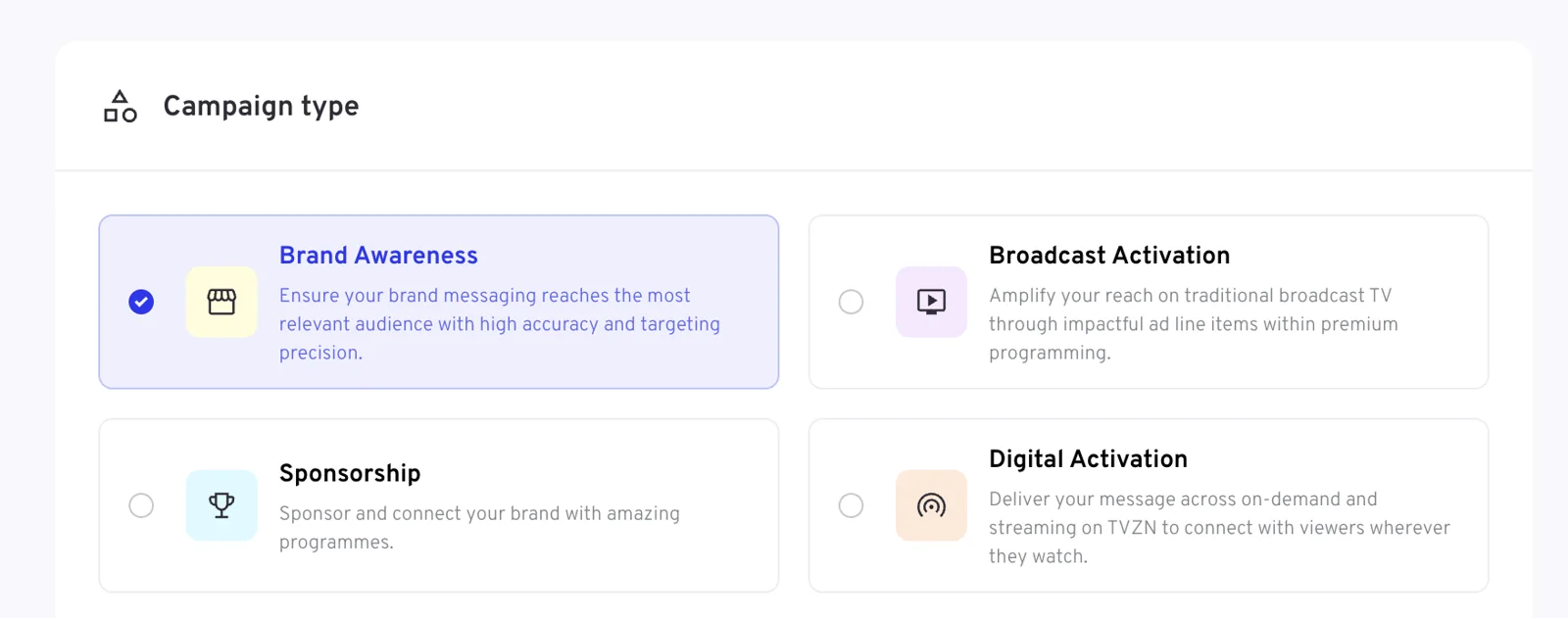
Campaign type is a row of cards: Brand Awareness, Broadcast Activation, Sponsorship and Digital Activation, each with a line describing what it is for. The form opens on Brand Awareness. Changing the type changes the form underneath it, so choose it before you build line items — and note that the platform refuses a change of type or buying method while any line item holds a price override, because an override is a rate in the trading currency you are moving away from.
Each type has its own page: Brand Awareness, Broadcast Activation, Sponsorship and Digital Activation.
Buying method
The two cards, with Audience Trading selected:

Buying method appears only for Broadcast Activation, as a second pair of cards, and defaults to Audience Trading.
- Audience Trading — audience guaranteed. You provide the budget and the goal, and TVNZ selects and optimises the spots to deliver that audience. This is the full linear buy, with demographics, channel shares, pacing and a schedule.
- Spot — you select where your spots are placed. The booking is a shell campaign and the spots are set later in TVMap, so the line item form is much shorter.
Objective
The header carries the chosen preset beside the section name — Standard here — so the answer is readable whether the panel is open or shut.

Objective is a collapsible section holding one field, and it appears only for Brand Awareness and for Broadcast Activation bought on Audience Trading. It is a delivery preset, defaulting to Standard:
| Objective | What it does |
|---|---|
| Standard | Even delivery across the flight at the standard rate, with no special optimisation |
| Reach Velocity | Front-loads delivery to build unique reach fast, early in the campaign |
| Weekend Store Visit | Weights delivery to Wednesday–Saturday, reaching household shoppers as the weekend shop is planned |
| Hunger Zone | Concentrates spots in the 4–8pm dinner window, when food orders and cravings peak |
| New to Market | Built for launches; optimises for maximum unique reach, so as many people as possible see it once |
Collapsed, the section shows the objective you chose, so you can review it without opening the panel.
Campaign budget
Three fields, in the order shown: the Deal, then Budget cap (gross) with Discount % beside it.
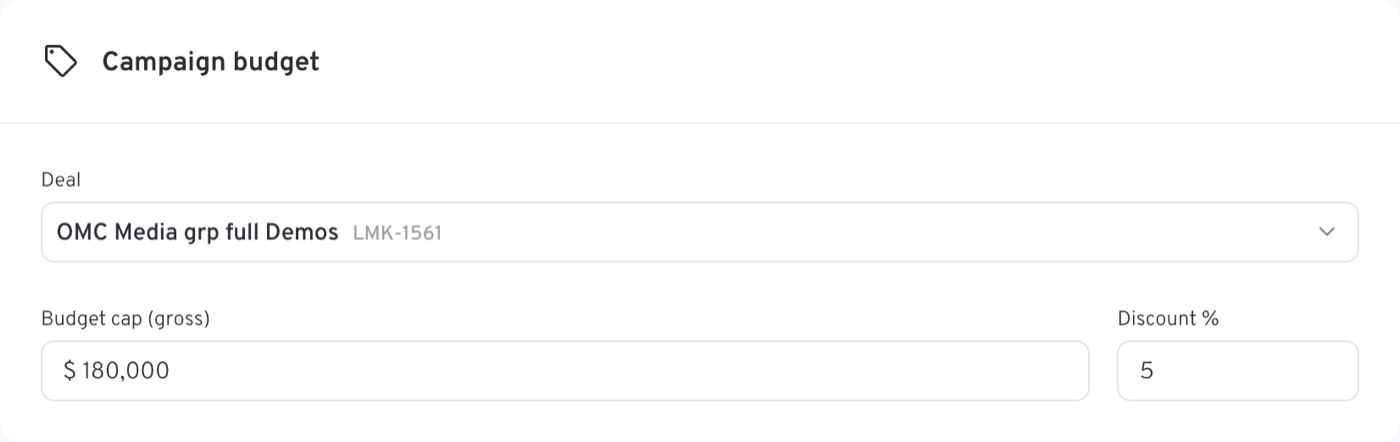
Deal sits at the top of the section, and you will need to choose one. Selecting a deal links the booking to a negotiated Landmark deal — shown with its Landmark reference beside the name — and the rate card prices against that deal. That is why a line item's CPM or CPT arrives already filled in and tagged Rate card on the rail. A Spot buy has no deal.
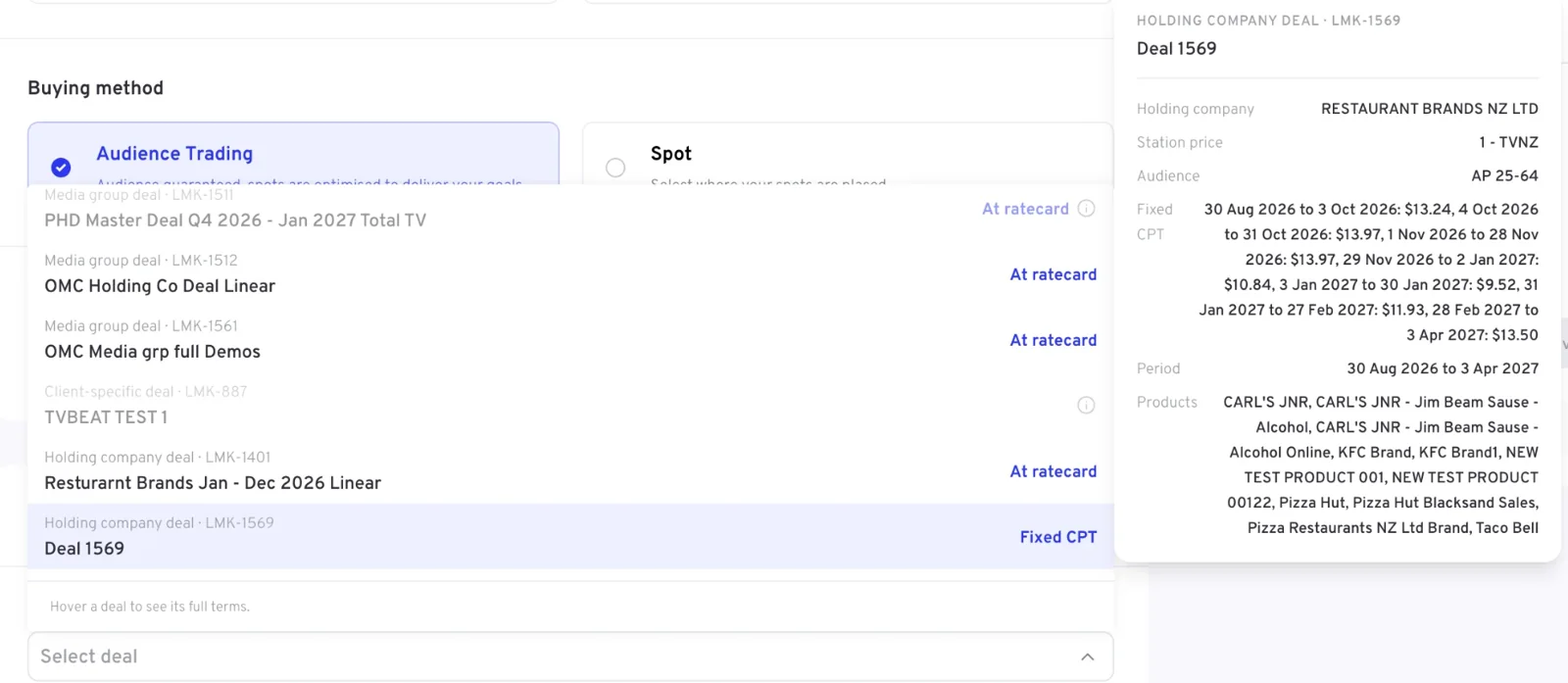
Open the list and the deals come grouped by kind — Media group deal, Holding company deal, Client-specific deal — each with its Landmark reference, and tagged on the right with how it prices: At ratecard, meaning the rate card applies under the deal's terms, or Fixed CPT, a contracted rate. A deal that does not fit the booking is greyed out, with an info icon saying why. Hover a deal to read its full terms before you commit: the holding company or group it belongs to, the station price, the audience it is struck on, the fixed CPT for each period, the period it covers and the products it applies to.
What a deal changes, and how the rate is built when there is none, is on Deals, rates and loadings.
Budget cap (gross) is the campaign's gross budget, to the cent. It is not just a ceiling: the line item budgets must sum to it exactly before the campaign can be booked.
Discount % is a percentage between 0 and 100. Its suggested values follow the agency and advertiser on the booking, and depending on the deal and campaign type it may not be offered at all — Sponsorship, for one, is budget only. The discount is applied after the loadings have been added to the rate — see Discount % for where it sits in the calculation.
For the full list with types and defaults, see the campaign fields in the field reference.