
Brand Awareness
Ensure your brand messaging reaches the most relevant audience with high accuracy and targeting precision. Brand Awareness is the linear buy with the fullest set of content controls: you trade against a demographic, and you shape delivery with channels, genres, programme exclusions and ratings.
Use it when the campaign is about reaching a defined audience accurately, and when which programmes and genres your brand sits against matters as much as the number of impacts.
It is the campaign type the form opens on.
| At a glance | |
|---|---|
| Trades against | A demographic |
| Delivers on | Linear TV, with channels, genres, programmes and ratings under your control |
| Buying method | None — always audience-traded |
| Goal | Target Impacts at a CPM |
| Flight start | 5 to 90 days ahead once past Draft |
| Line item flight | One broadcast month each |
Booking a Brand Awareness campaign
1. Campaign level
| Section | Fields |
|---|---|
| General info | Campaign name, Insertion order ID, PO number, Flight date, Agency, Advertiser, Product, Product category, Notes |
| Campaign type | Campaign type = Brand Awareness, then Objective |
| Campaign budget | Deal, Budget cap (gross), Discount % |
There is no buying method — that is a Broadcast Activation question. See Campaign level for what each field expects. The Deal you pick is what the rate card prices against, so choose it before you start reading CPMs.
2. Line item info and targeting
| Section | Fields |
|---|---|
| Line item info | Line item name, Flight date, Blackout periods |
| Targeting → Demographics | Demographics (defaults to 18+) |
| Targeting → Genre | Genre, included or excluded |
| Targeting → Channels | Channels, included or excluded |
| Targeting → Programme | Programme linear exclusion and the digital programme exclusion |
| Targeting → Programme Rating | Programme rating |
| Targeting | Peak %, Break position, FIB / LIB % |
Targeting on a Brand Awareness line item runs from the demographic at the top, through Genre, Channels, Programme and Programme Rating as collapsible rows, down to Peak % and Break position.
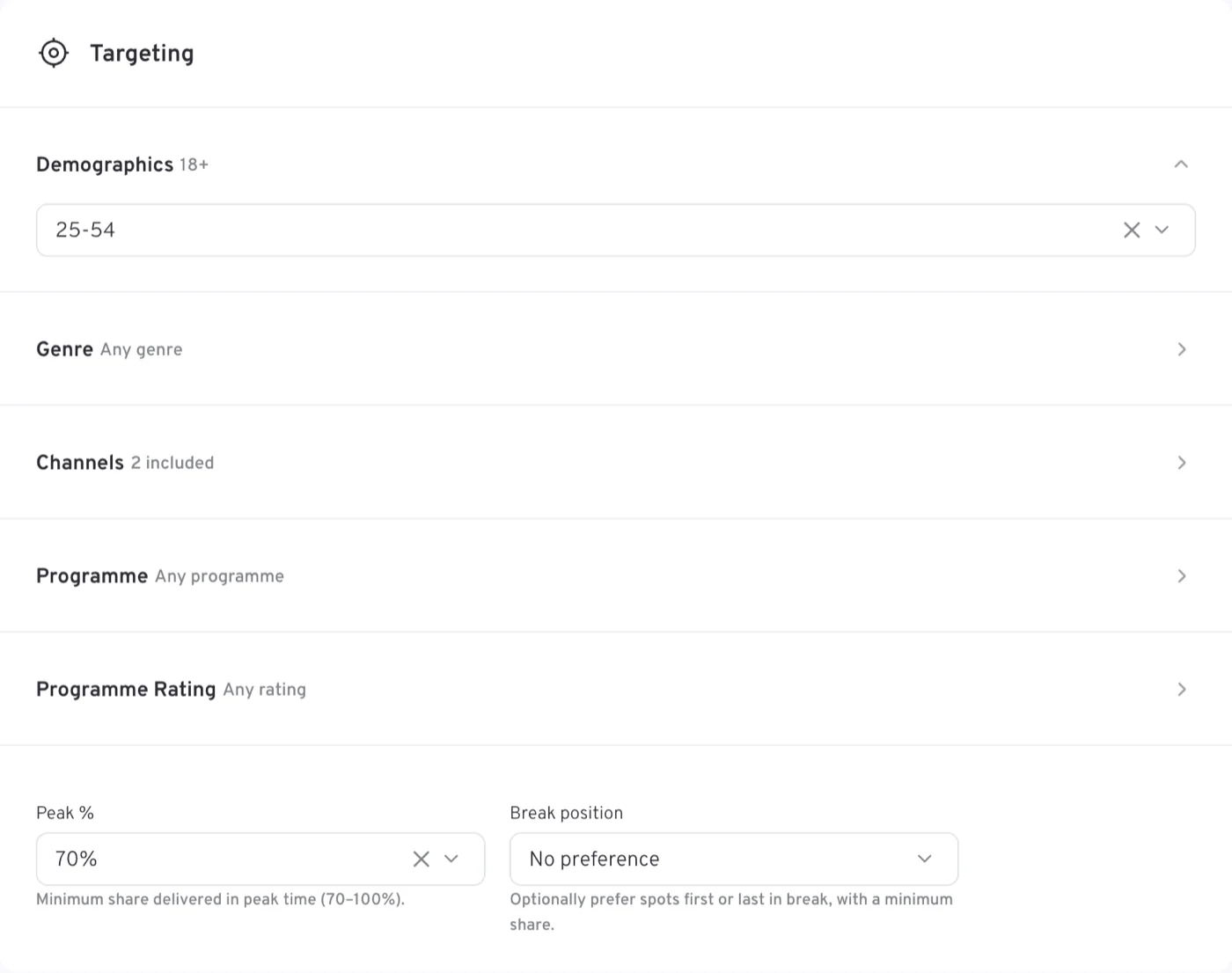
Start with Demographics: the trading demo determines the peak levels you are offered and the rate the line item prices at, so anything you set before it may need revisiting.
Brand Awareness is the only type that offers both programme exclusion lists — linear and digital — and the only one that uses the Channels include/exclude list rather than per-channel shares.
Ratings are stored as exclusions here
On Brand Awareness, what you choose under Programme rating is stored inverted — as ratings to keep away from. Read the chips rather than assuming the selection means "only these".
3. Budget, pacing and schedule
| Section | Fields |
|---|---|
| Budget | Budget (gross), Target Impacts (Calculated), CPM (gross) with its Rate card / Custom switch |
| Budget → Flight pacing | Evenly, plus Weekly and Monthly as the flight length allows, and the split table when it is not Evenly |
| Schedule | Week start (opens on Sun), Start time, End time (as wide as 00:00 to 24:00) |
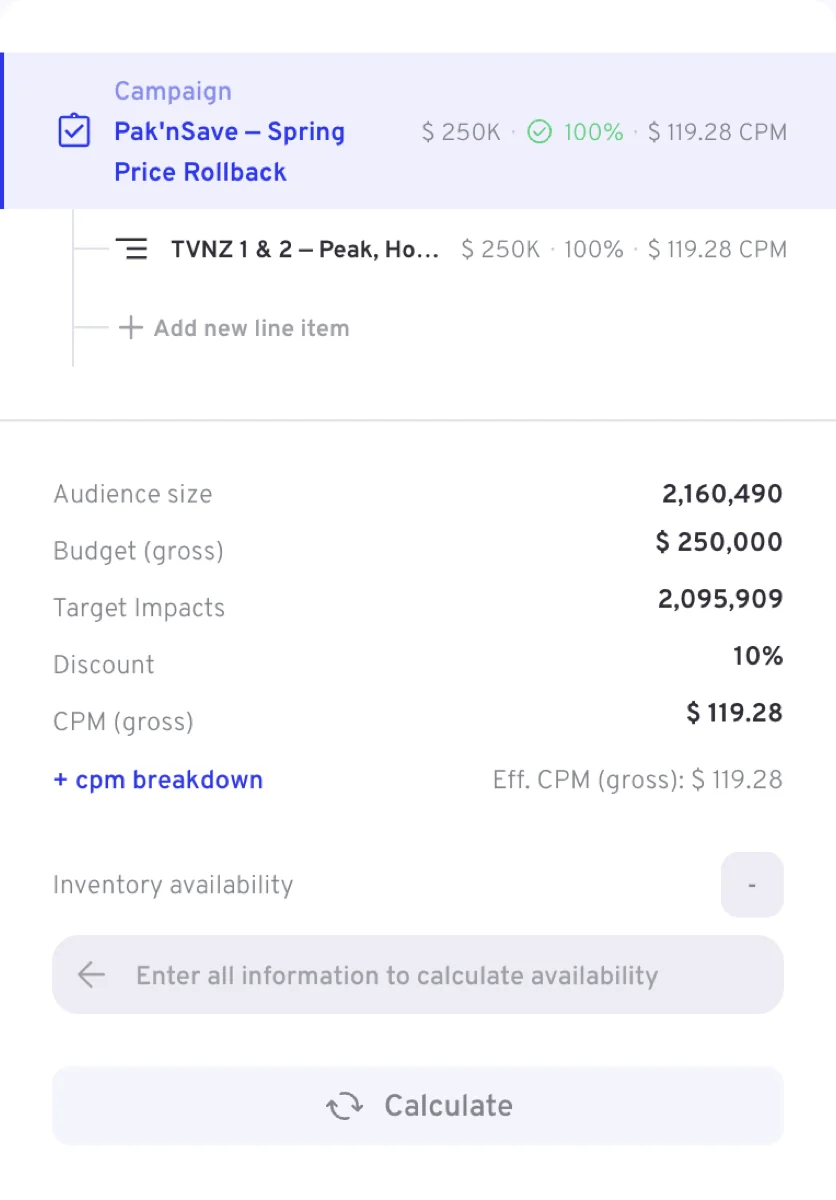
Brand Awareness trades in impacts, and the rail says so: audience size, budget, Target Impacts, discount and CPM (gross), with + cpm breakdown and the effective CPM under it.
4. Creatives
The Creatives section carries Ad duration — Drives the CPM price — creatives added later must match — and Sensitive content, then Add creatives, where a Creative code and the Add button put the Landmark House ID on the line item. The campaign flight dates have to be set before creatives can be added.
Sections you will not see on Brand Awareness — the full matrix is in which fields each campaign type shows — are Product, Audience Segments, Frequency Cap, Geography, Device category, Dayparts, Measurement, Brand association / Asset types and Sponsorship package. Age group and Gender do not appear either — Demographics does that work. Nor does Ad Mirroring, which belongs to Broadcast Activation.
Objectives
Objective sits at the campaign level and applies to the whole booking. It defaults to Standard.
| Objective | What it does |
|---|---|
| Standard | Even delivery across the flight at the standard rate; no special optimisation |
| Reach Velocity | Front-loads delivery to build unique reach fast in the early part of the campaign |
| Weekend Store Visit | Weights delivery to Wednesday–Saturday, reaching household shoppers as the weekend shop is planned |
| Hunger Zone | Concentrates spots in the 4–8pm dinner window, when food orders and cravings peak |
| New to Market | Built for launches; optimises for maximum unique reach so as many people as possible see it once |
Peak and break position
Peak % is the minimum share of delivery you require in peak time, and on Brand Awareness the help line under it fixes the range: Minimum share delivered in peak time (70–100%). The levels on offer come from the pricing sheet's peak table for the demographic you chose, so they move when the demo does.
Break position is optional — Optionally prefer spots first or last in break, with a minimum share. It opens on No preference; picking First in break or Last in break reveals FIB / LIB %, the minimum share to deliver in that position — No minimum, or 5% to 100% in steps of 5. Both peak and break-position guarantees carry a premium, so they show up in the CPM on the summary rail.
Rules specific to Brand Awareness
- The campaign flight must start between 5 and 90 days from today once the campaign is past Draft.
- Each line item flight must fall within a single broadcast month — weeks starting Sunday, the month ending on the Saturday nearest its end. Run a longer campaign as one line item per broadcast month.
- Line item budgets must sum exactly to the campaign Budget cap, and a weekly or monthly split must total 100%.
- Budget, Target Impacts and the rate must agree, allowing for rounding.
Tips
- Set Demographics before anything commercial. It drives the peak table and the rate, so changing it later moves your numbers.
- A campaign running across a month boundary needs one line item per broadcast month; build them as you go rather than discovering the rule at booking time.
- Keep an eye on the rail's budget total: the line items have to land exactly on the Budget cap, not near it.
- Use the collapsed section summaries — Any genre, Any rating, Any programme — to check at a glance what you have left open.
- Run the availability check before you book, and adjust targeting, budget or flight if it comes back tight.
- Get it right while it is in Draft. It stays editable after booking, but from then on changes are reviewed as a set before they apply, and some fields lock — see what you can still change.